
Code and deploys
Your custom modules reach the project from your own GitHub repository. Every change is checked by the pipeline, goes through staging first, and you promote it to production yourself.
Connecting a GitHub repository
The repository holds only the project's custom modules. Odoo Enterprise and the l10n.gr suite are already in the project.
- In “Code & pipeline” choose “Install the GitHub App” and select the repository. The app has read access only.
- Back in the console, choose the “Repository”, the “Staging branch” and, if you want one, a “Production branch”.
- Choose “Connect”.
With “Disconnect”, new pushes stop starting runs. Releases already approved stay available.
The pipeline
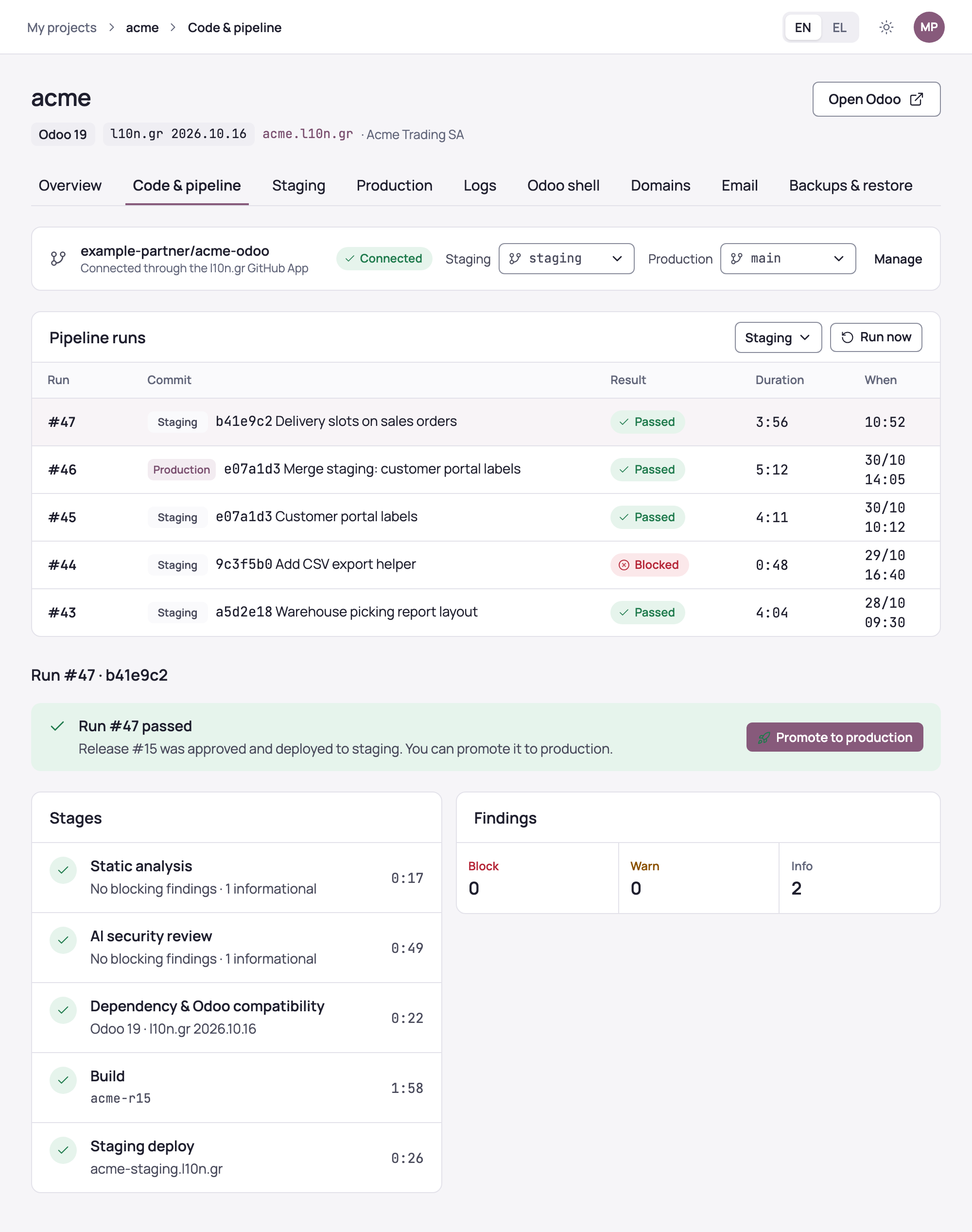
Every push to the staging branch starts a run, and you can start one with “Run now” too. The stages are:
- Static analysis: Odoo-aware linting, Python security scanning and a search for keys or passwords written in the code.
- AI security review: reviews the change and grades its findings.
- Dependency & Odoo compatibility: a valid manifest, a version that matches the project's Odoo, dependencies that exist, Python packages from the l10n.gr list, and the suite's protected parts left as they are.
- Build: the project's release, with Odoo Enterprise, the l10n.gr release and your modules.
- Staging deploy: your modules are installed or upgraded on staging.
Each run shows its findings as “Block”, “Warn” or “Info”. A change with a blocking finding does not reach staging: you fix it, push again and a new run starts by itself. Every run that passes creates an approved release (#1, #2 and so on).
Staging
The “Staging” section shows the release the pipeline deployed, with “Open” for staging's Odoo, and the “Staging history”. Until the first run passes, staging runs the l10n.gr release without your modules.
A push to staging does not change its data. To test with the customer's real data, choose “Clone production → staging”: production's database and files replace everything on staging, while your modules' release stays deployed.
Before staging starts, outgoing mail, scheduled actions and all fiscal transmissions to the provider and myDATA are disabled. Documents issued on staging never reach AADE.
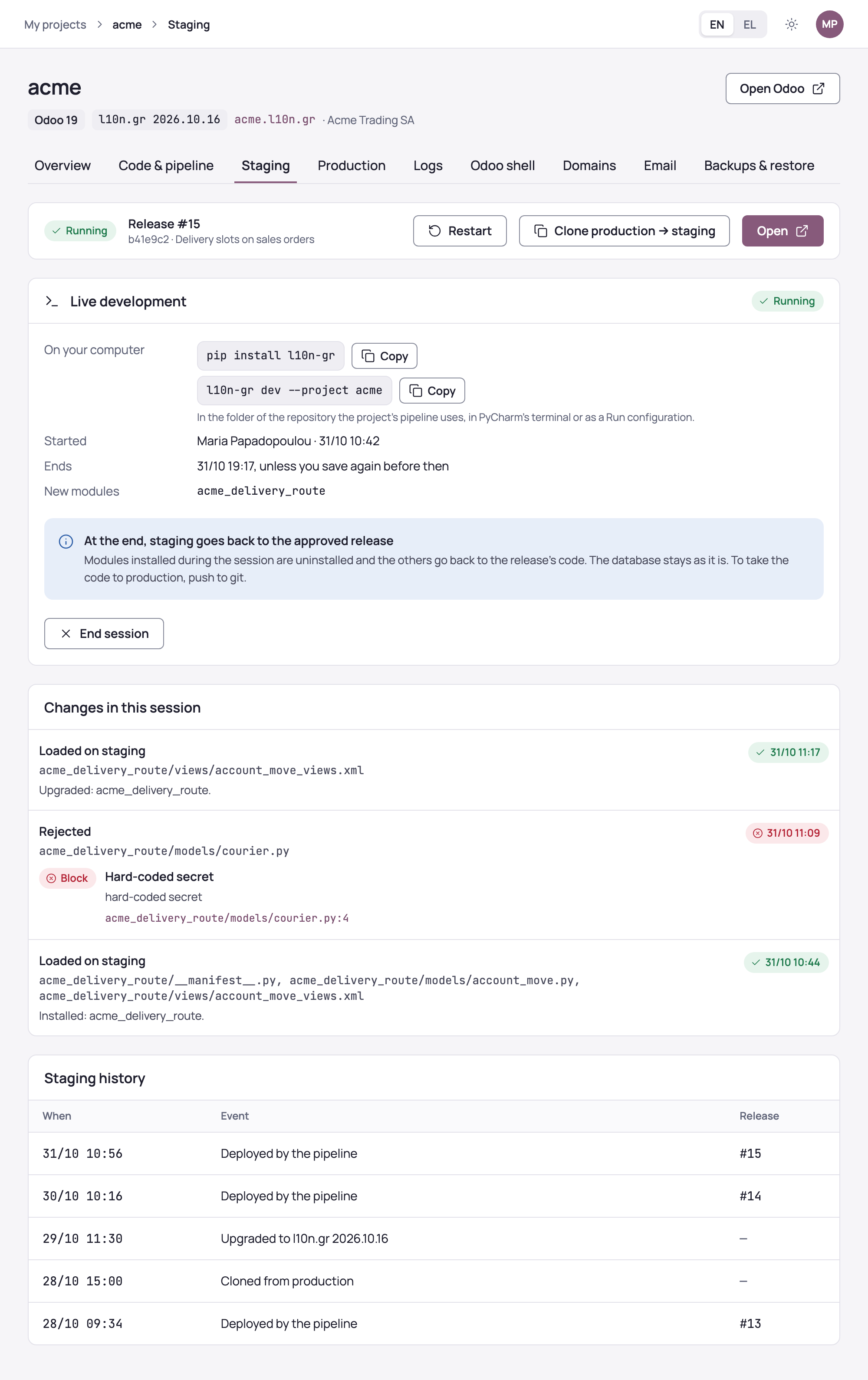
“Restart” starts staging's Odoo again. It takes a minute or two.
Want to see your changes on staging without a push and without waiting for the pipeline? See Live development with l10n-gr dev →
Production deploys
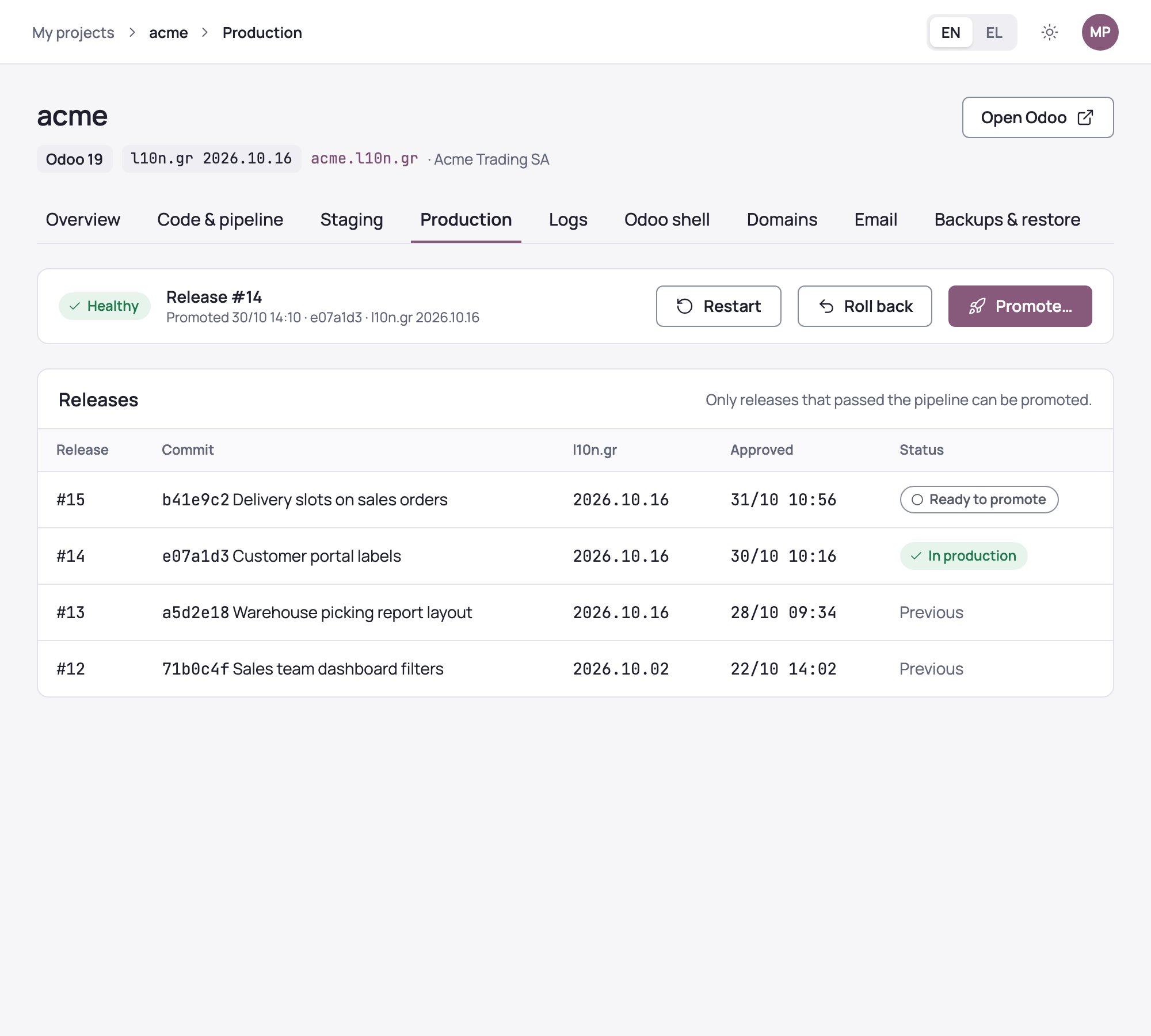
Only approved releases reach production: those that passed the pipeline and already run on staging. You promote them yourself, whenever you are ready.
- In “Production” choose “Promote…” or, on the run that passed, “Promote to production”.
- Choose the approved release.
- Confirm with “Promote #…”.
A backup of production is taken automatically right before the deploy. Odoo restarts and upgrades the modules that changed, and users are signed out until it is back. If the deploy does not finish, the database and files go back to that backup and production carries on with the previous release.
If you set a production branch, a push to it deploys only when the same code has already been on staging, for example after merging the staging branch. Otherwise the run stops and production stays as it is. Here too, a backup is taken before every deploy.
Rolling back
With “Roll back”, production runs an earlier release again. A backup is taken first, and Odoo restarts.
Only the code goes back; the database stays as it is. If the newer release changed the database structure, restore the point taken before its deploy (chapter “Operations”).
Upgrading the l10n.gr suite
Neurons Tech publishes new l10n.gr suite releases as legislation changes. You upgrade the project yourself, from the “l10n.gr release” card on the “Overview”: staging first, then production.
- Under “New release for staging” choose the release and “Upgrade staging”. Staging is upgraded with the same modules from the pipeline.
- Check staging with the new release.
- Choose “Upgrade production to …” and confirm. Production moves to the release staging runs.
Before production is upgraded a restore point is taken, and Odoo stops while the modules are upgraded. The database and files stay as they are. If the upgrade fails, production stays on the previous release. Only releases newer than the project's current one are offered.