
Live development with l10n-gr dev
Write code in PyCharm or any IDE you like, and the project's staging loads it a few seconds after you save. You try the l10n.gr API on a real database without waiting for the pipeline.
How it works
l10n-gr dev runs on your computer, inside the project's repository. You work and save as usual, and when you press Enter in its terminal it sends your changes to the console. There they go through the same checks as the pipeline, and if there is no blocking finding, staging loads them.
The new versions of all your files are loaded. A new module is installed, and the modules you changed are upgraded, together with the Python packages they declare in __manifest__.py. The staging log shows in the same terminal, under the same rules as the «Logs» section.
Staging stays isolated for the whole session: outgoing email, scheduled actions and transmissions to AADE and the provider stay switched off.
What your code can use from l10n.gr is listed in the Partner API →
Installation
Install the tool with pip install l10n-gr, in your computer's Python environment or your project's in PyCharm. You need nothing else besides Python.
Starting a session
- In the console, open the project, go to «Staging», and on the «Live development» card press «Start session». The console shows a token only once: copy it.
- In PyCharm's terminal, in the repository folder, run l10n-gr dev --project acme with your own project's name. On its first run the tool asks for the token.
- To start it with one click, create a PyCharm Run configuration with the same command.
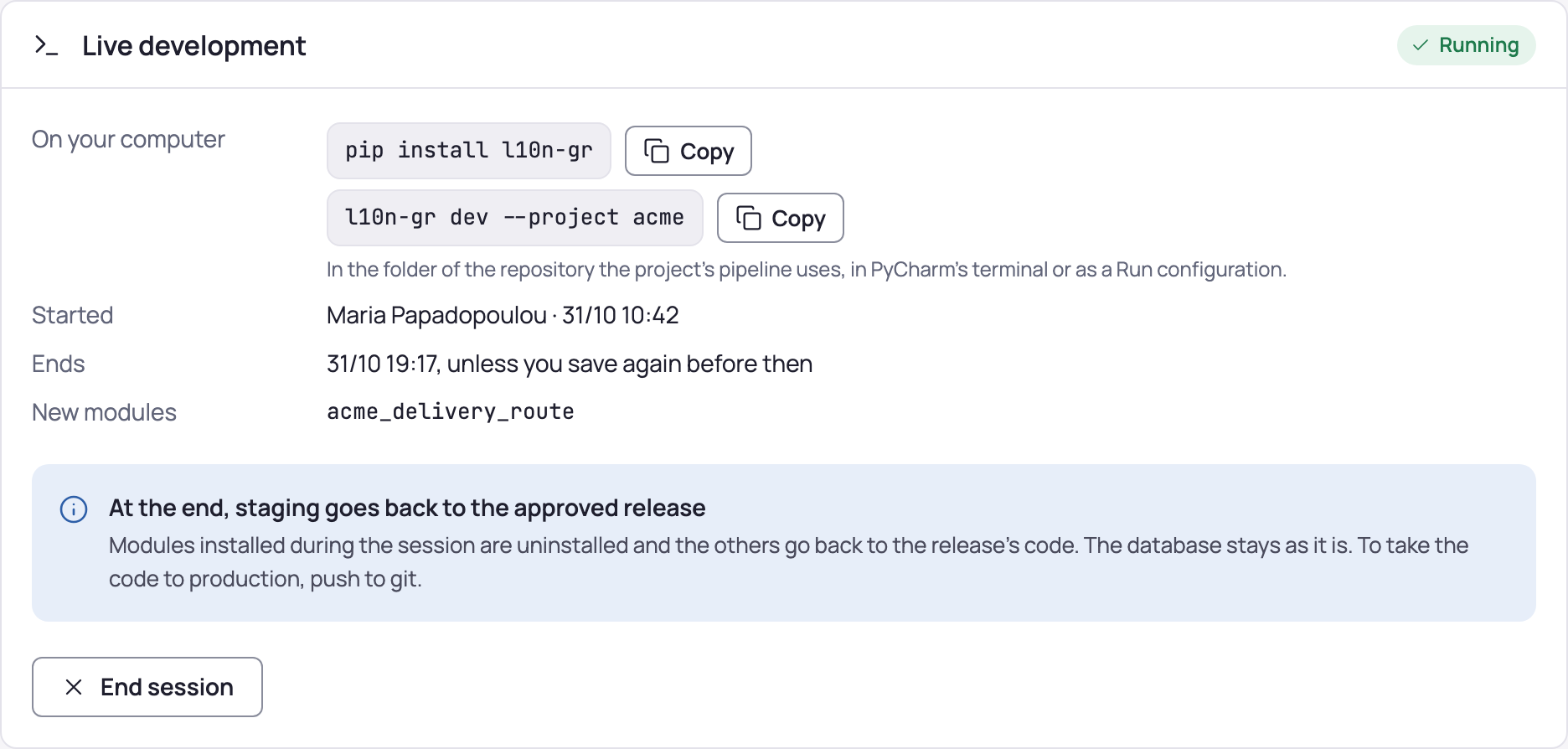
Each project has one session at a time. A session covers only that project's staging and cannot reach production, the Odoo shell or backups.
Reloading staging
Save as many files as you like: the terminal counts them. When you want to see them on staging, press Enter in the l10n-gr dev terminal. The check and the reload take from a few seconds to about a minute, depending on the size of the change, and staging is unavailable while Odoo restarts. If you prefer a reload on every save, start with l10n-gr dev --watch. If a blocking finding comes up, the terminal shows it with the file and line, and staging keeps the last accepted version until you fix it.
Every change, accepted or not, is recorded with its files and the check's findings.
Ending a session
The session ends when you press «End session» in the console or Ctrl+C in the terminal, after 8 hours without a reload, or when the pipeline deploys to staging. Staging then goes back to the approved release: modules installed during the session are uninstalled and the others go back to the release's code. Its database stays as it is.
To keep your work, commit and push to GitHub. The pipeline checks it and deploys it to staging, and you promote it to production like any other change. Code from a live session never reaches production directly.
What it does not include
A session gives no SSH, SFTP, remote interpreter or debugger, because they would show the suite's code. To find a bug use the log and, for data, the console's Odoo shell.