
Projects
Each project is one Odoo Enterprise installation for one customer, with production and staging, or a myDATA connection without a server. See how you create a project from a subscription code and what its overview shows.
My projects
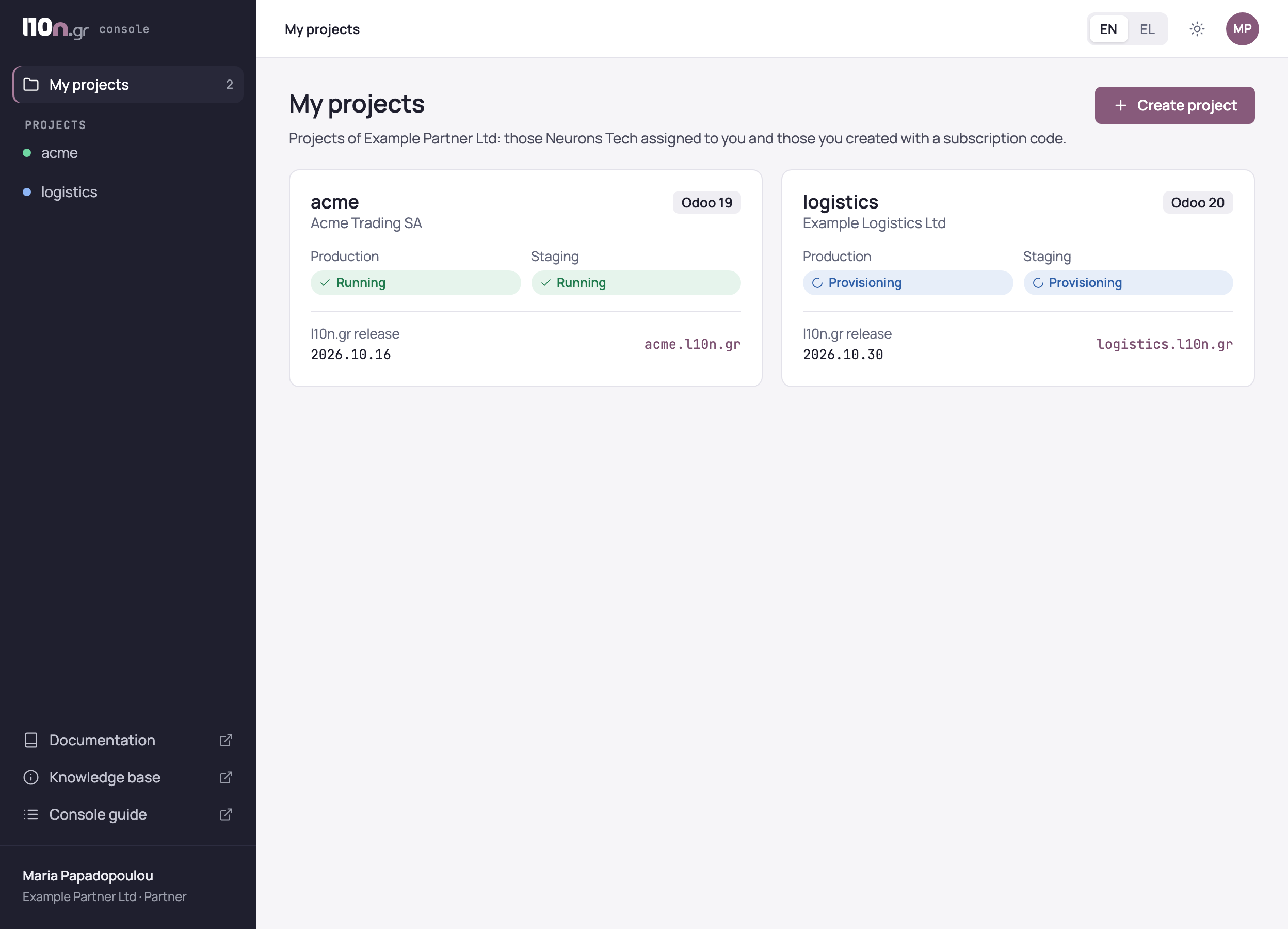
“My projects” lists your company's projects: those Neurons Tech assigned to you and those you created with a subscription code. For each one you see the customer, the state of production and staging, the Odoo version, the l10n.gr release and the production address.
Each project has two environments. Production is the Odoo your customer works in. Staging is the test environment where you check every change before it reaches production, and it never transmits documents.
New project from a subscription code
A new project starts from an l10n.gr subscription. Its code is on the subscription quotation and works once the subscription is confirmed.
- In “My projects” choose “New project”.
- Paste the “Subscription code” and choose “Check code”. For a valid code you see the plan, the server's resources (vCPU, RAM, disk) and the next renewal.
- Fill in the project name, the customer's company and, optionally, its VAT number.
- Choose the Odoo version (19 or 20), the l10n.gr release and the subdomain. Production will be at <subdomain>.l10n.gr and staging at <subdomain>-staging.l10n.gr.
- Choose “Create project”. Production and staging start being prepared.
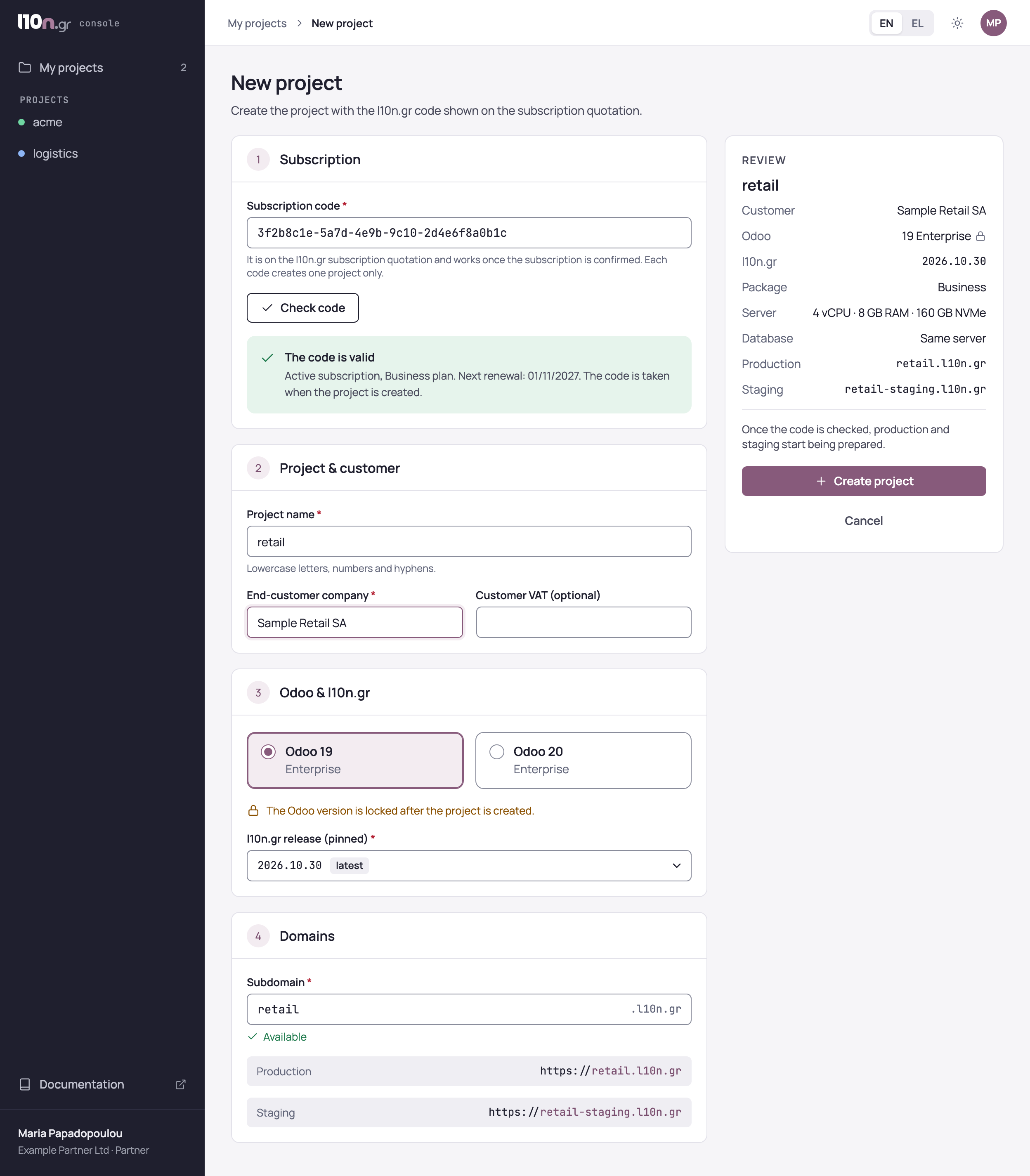
The plan and the production server are set by the subscription. Each code creates one project only, and the Odoo version cannot change after creation. If the check says the code is not valid, make sure you copied all of it from the quotation, or contact Neurons Tech.
The l10n.gr subscription code is not the customer's Odoo Enterprise subscription code. You enter the Odoo Enterprise code in Odoo itself, as on any installation.
Project awaiting completion
A project Neurons Tech assigned to you may show as “Awaiting completion”. Open it, choose the Odoo version, the l10n.gr release and the subdomain, and choose “Complete and provision”.
Provisioning and first sign-in to Odoo
Provisioning creates production and staging with a new database, Greek active and the l10n.gr setup wizard ready to run. Once it finishes, the project is “Active” and production backups start.
With “Open Odoo” you choose an environment and a user, and Odoo opens in a new tab signed in as that user, without an Odoo password. Each such sign-in is recorded with your name, the environment and the user.
The Odoo administrator has your account's email. If you also want to sign in with a password, set one with Odoo's own password reset. The first thing you run on the new database is the l10n.gr setup wizard.
Project overview
The “Overview” shows production and staging with their address, release and state, the plan with its resources (vCPU, RAM, disk) and the location, Germany (EU). On staging, fiscal transmissions show as “Disabled on staging”.
Below are the “l10n.gr release” card, where you upgrade the suite, and “Production resources”: CPU, memory and disk, now and over the last 24 hours.
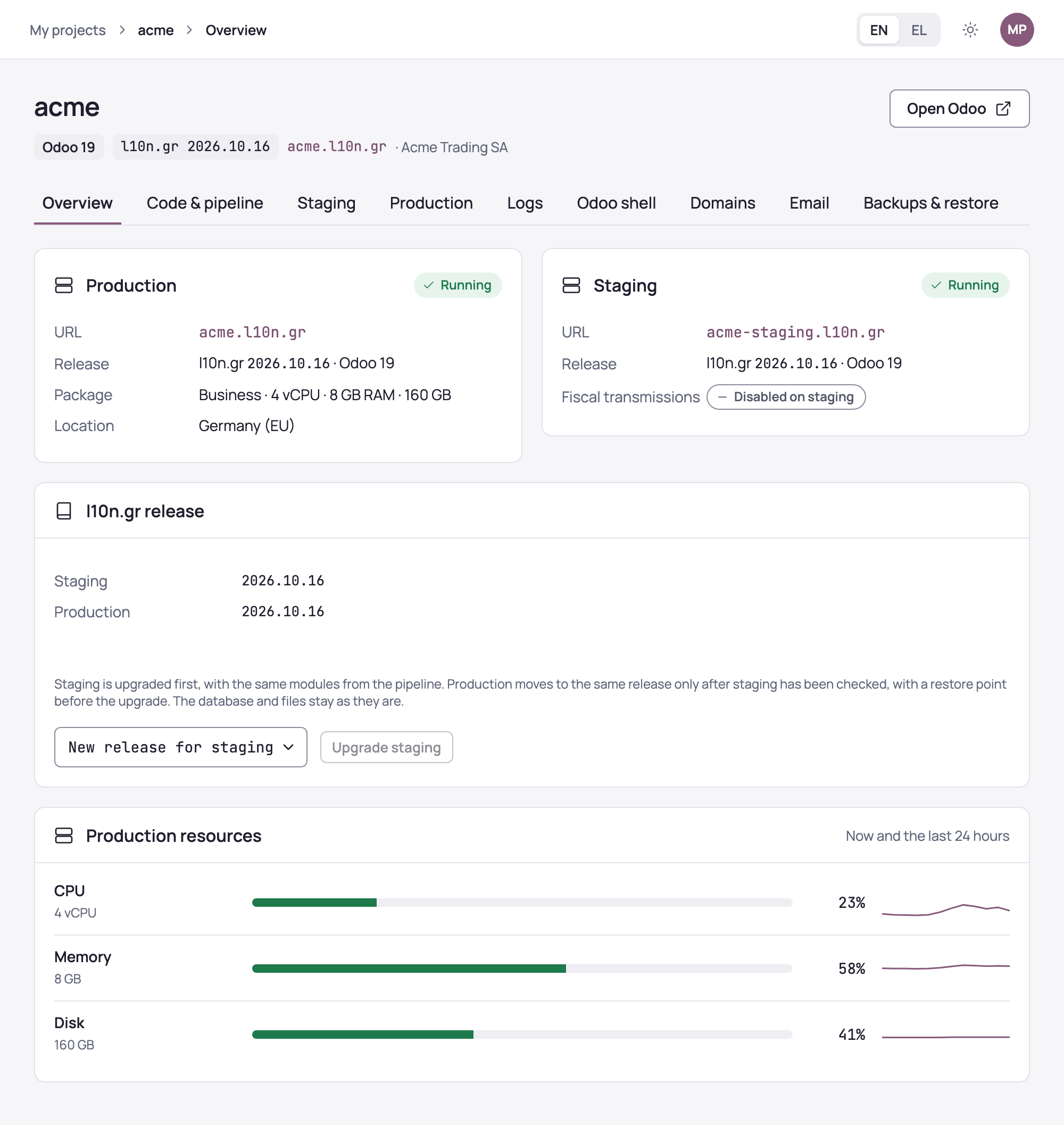
The project's other sections are “Code & pipeline”, “Staging”, “Production”, “Logs”, “Odoo shell”, “Domains”, “Email”, “Backups & restore” and, for projects created from a subscription code, “Subscription”.