
Getting started
From the invitation to your first sign-in: password, authenticator app, recovery codes and your profile.
The invitation
Access to console.l10n.gr is by invitation only. Neurons Tech sends the invitation to your email, with a link that works once. Each partner has one account.
Opening the link, you set your password. It needs at least 12 characters and must not appear in known password leaks; the form shows each requirement as you type. Then choose “Continue to two-factor setup”.
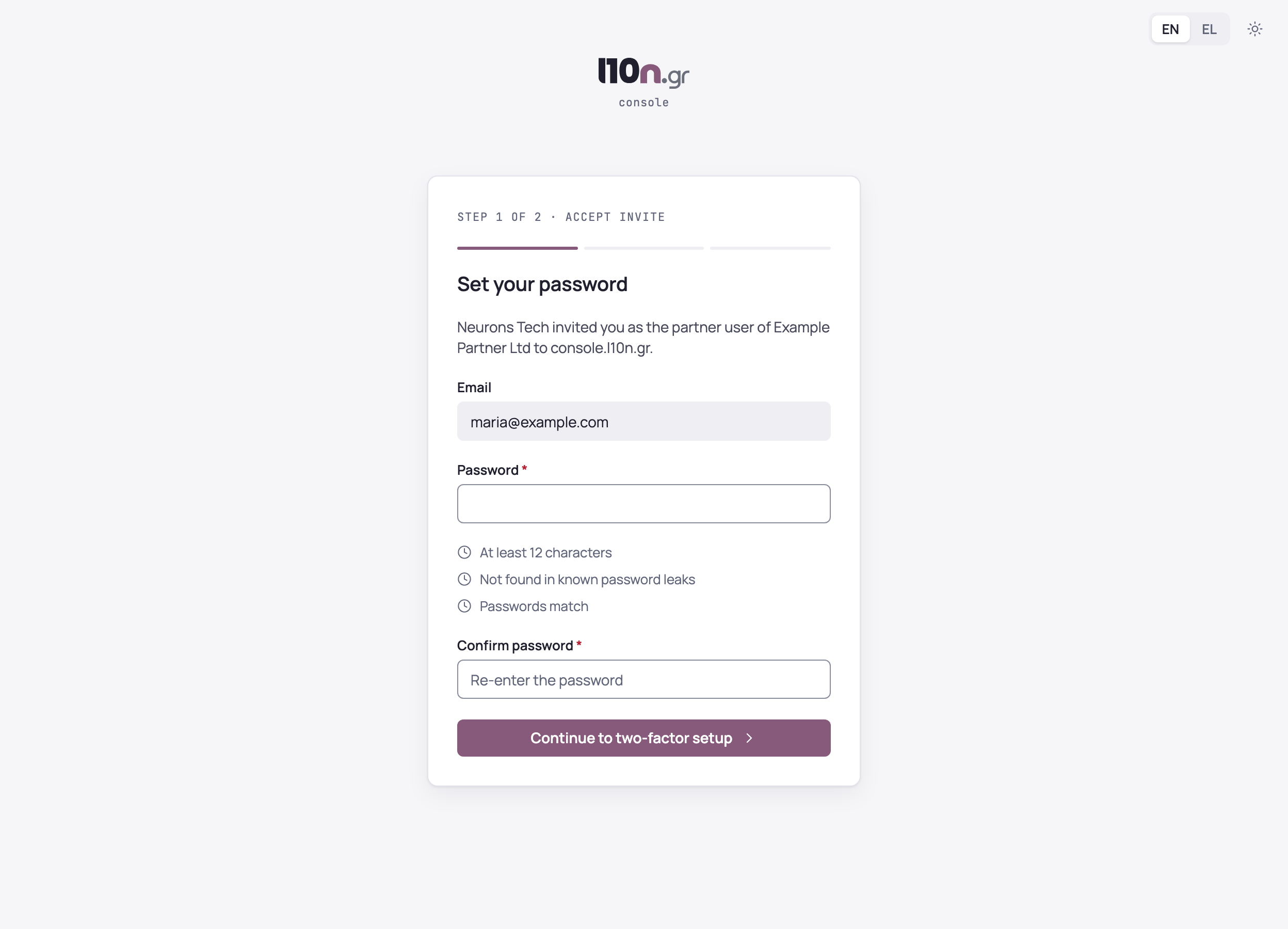
If the link has expired or has already been used, ask Neurons Tech for a new invitation.
Two-factor authentication
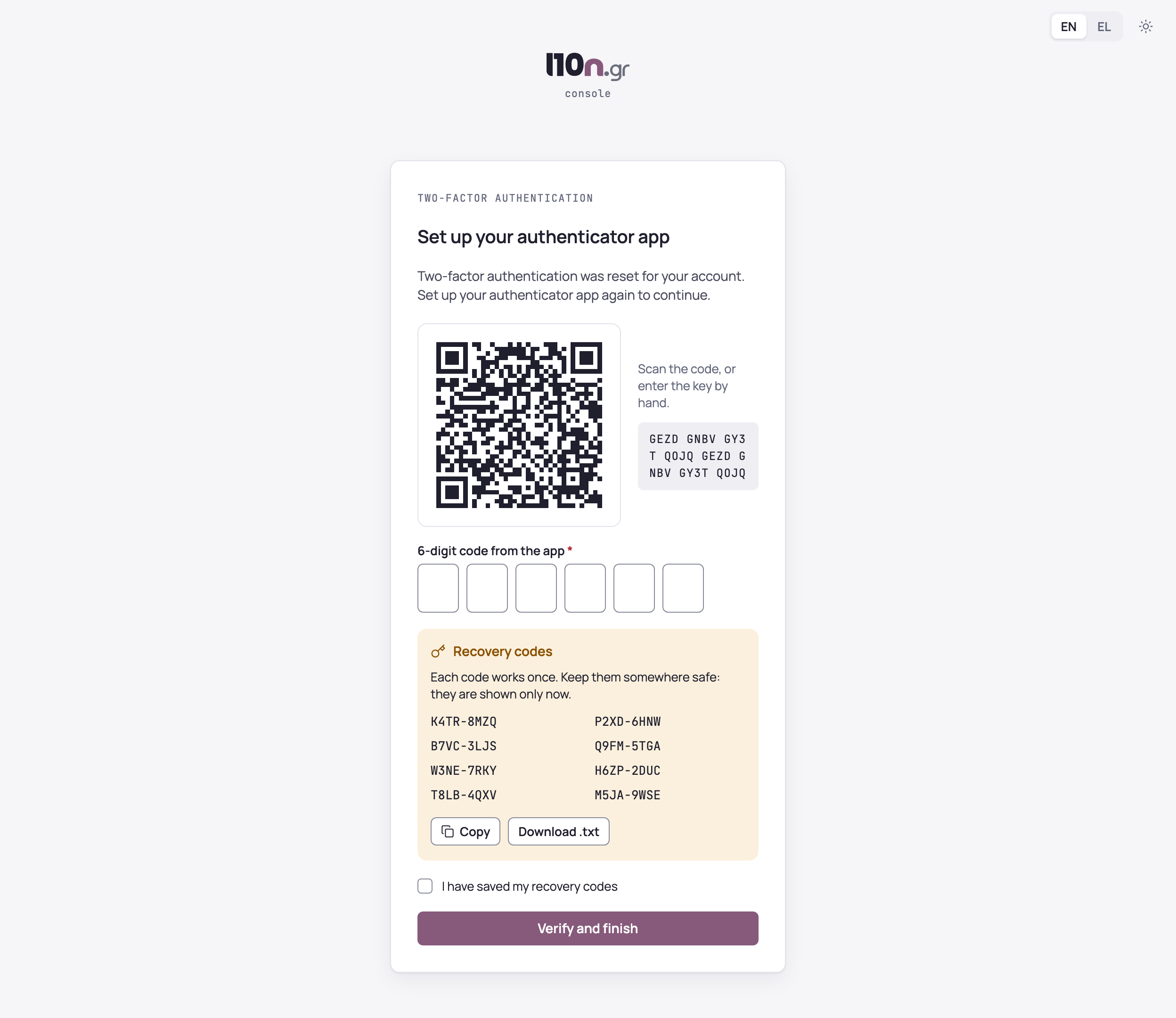
Two-factor authentication is required for every account. You need an authenticator app on your phone, one that shows 6-digit codes.
- Scan the QR code with the app, or enter the “Setup key” by hand.
- Keep your recovery codes with “Copy” or “Download .txt”. They are shown only this once.
- Tick “I have saved my recovery codes”, enter the 6-digit code from the app and choose “Verify and finish”.
Signing in
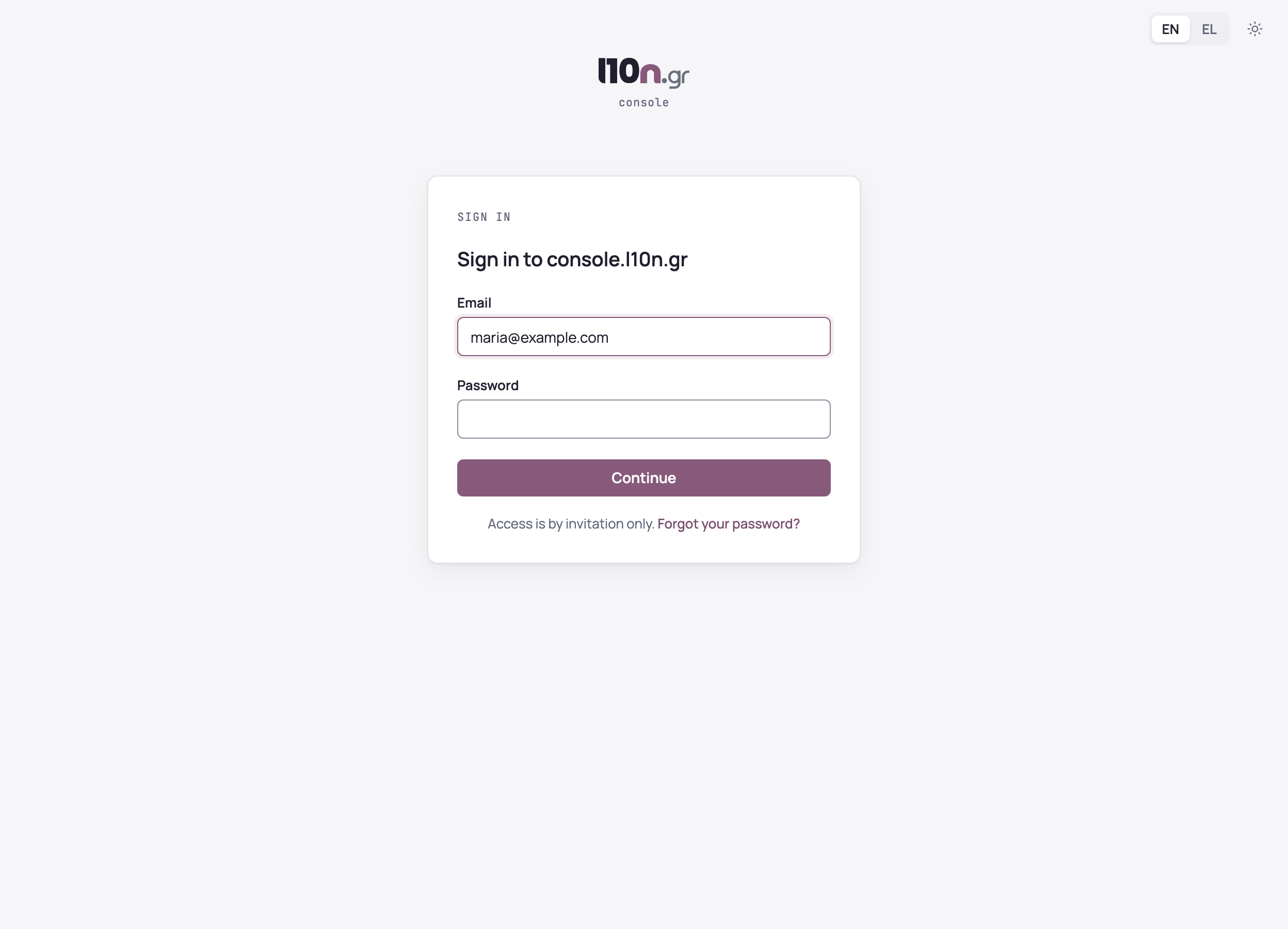
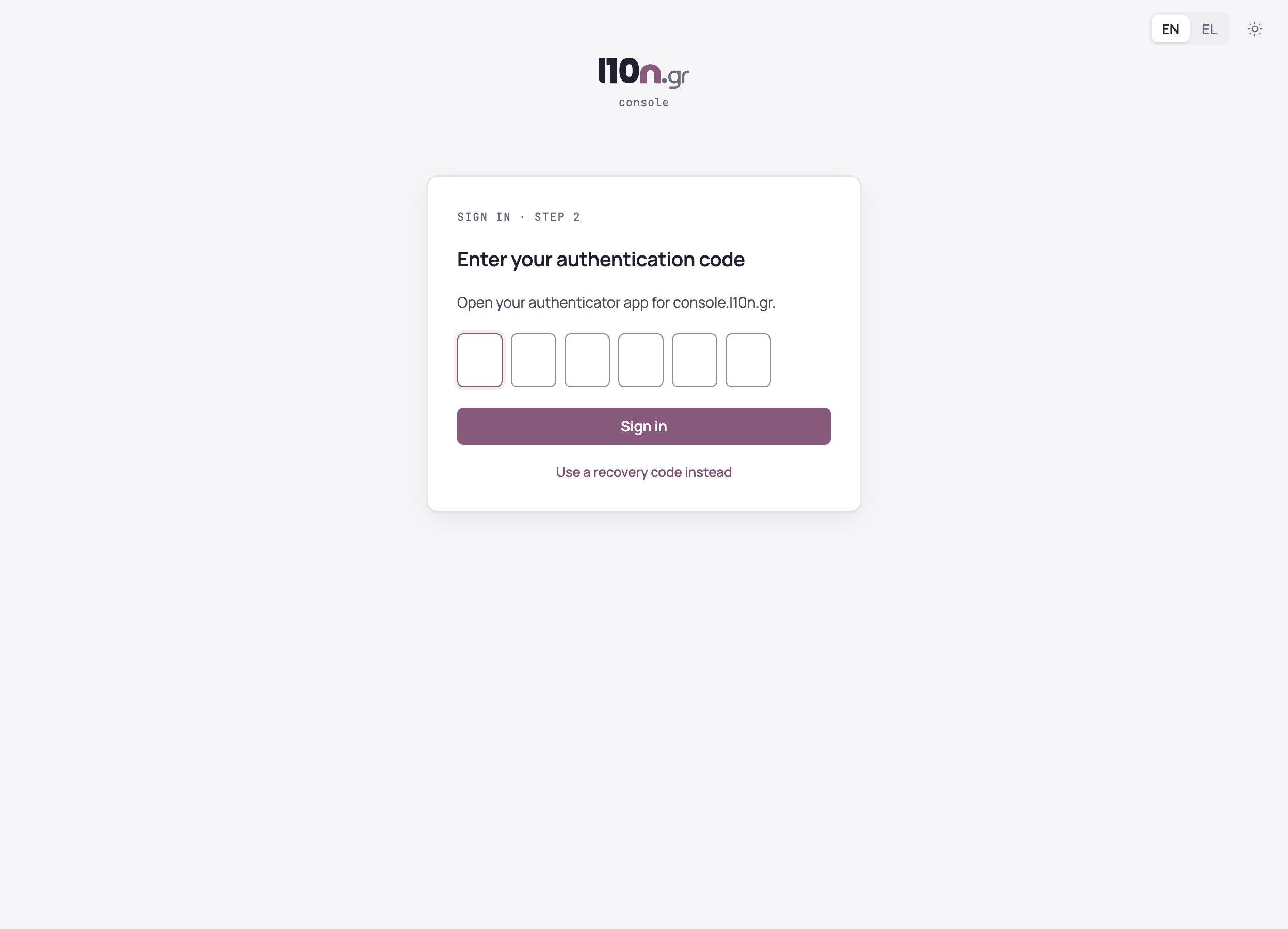
You sign in with your account's email and password. In the second step you enter the 6-digit code your authenticator app shows, and choose “Sign in”.
If you do not have the device with the app at hand, choose “Use a recovery code instead” and enter one of the codes you kept. Each code works once, and you receive an email when one is used.
If you lose the device and have no recovery code left, contact Neurons Tech. Two-factor authentication on your account is reset, and at your next sign-in you set up the app again.
Forgotten password
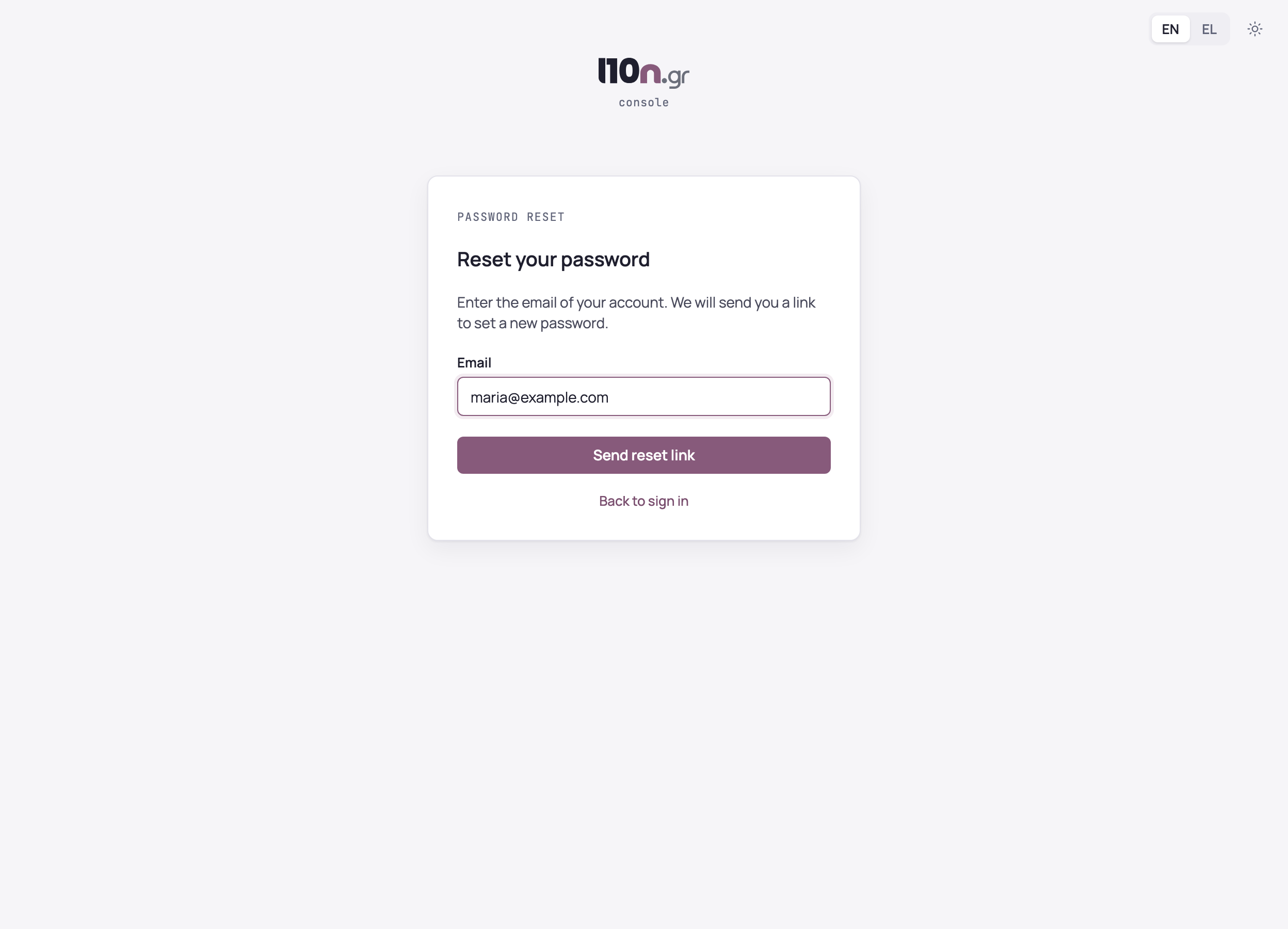
On the sign-in page choose “Forgot your password?”, enter your account's email and choose “Send reset link”. The link you receive works once.
The new password follows the same rules as the invitation. Your authenticator app stays the same, so you then sign in with the new password and the code from the app.
My profile
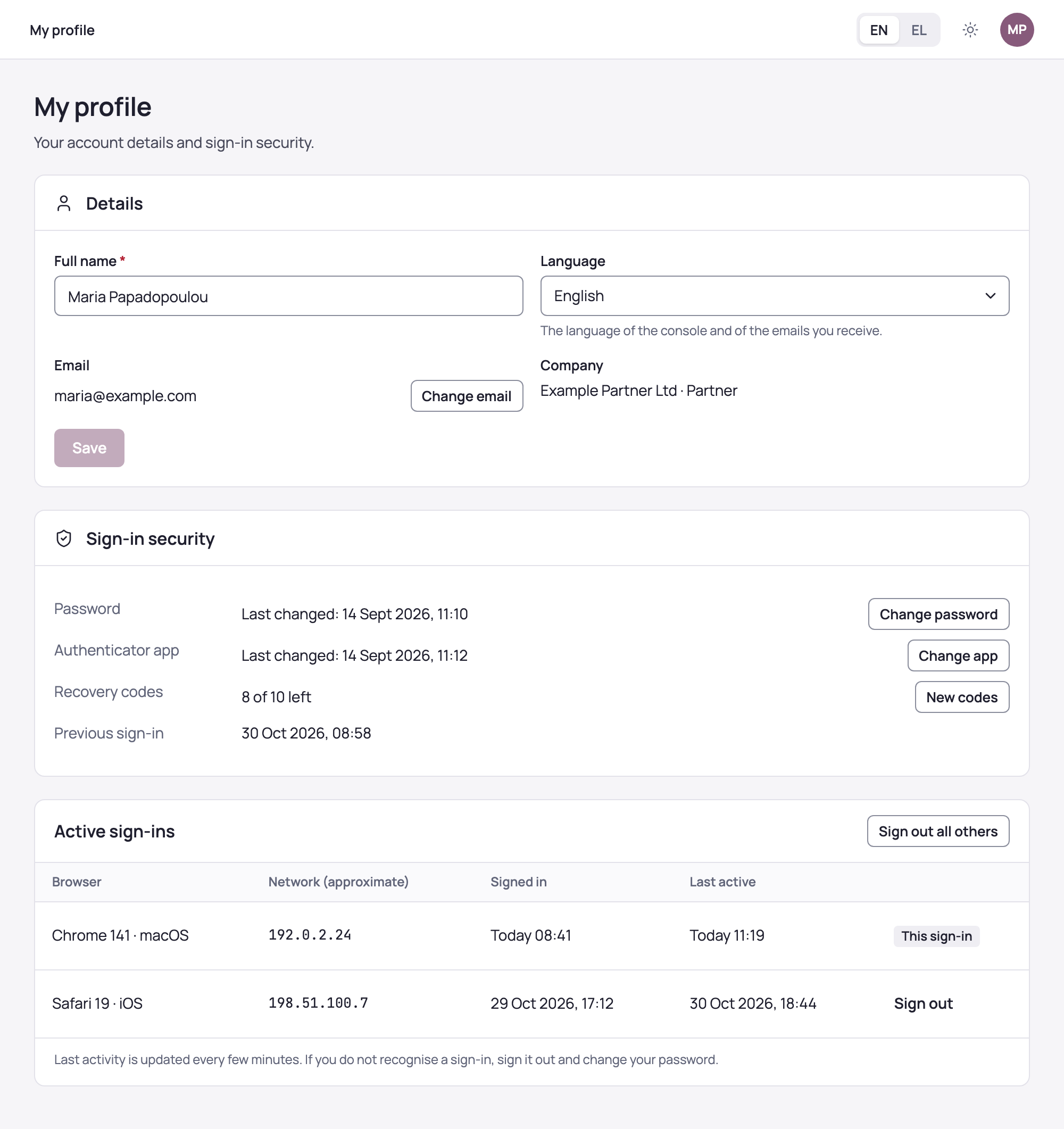
From your initials, top right, open “My profile”. There you change your full name and language, which applies to the console and to the emails you receive. Under “Sign-in security” you find:
- “Change password”, with your current password and the same security rules.
- “Change app”, for example when you change phone. Your current app keeps working until you confirm the new one with one of its codes, and your recovery codes stay the same.
- “Create codes” or “New codes”: 10 recovery codes, shown once. New codes void the earlier ones. The profile shows how many are left and warns you when few remain.
- “Change email”: we send a confirmation link to the new address, valid for one hour. Your sign-in email changes once you open it; until then you sign in with the current one.
Every change asks for your current password and, where needed, a code from your app. After it, your other sign-ins are signed out and you receive an email about the change.
Active sign-ins
On the same page, “Active sign-ins” lists every browser where you are signed in, with the approximate network, when you signed in and when you were last active. “Sign out” ends one sign-in; “Sign out all others” ends every one except the current.
If you do not recognise a sign-in, sign it out and change your password.